



AptAI's Admin Page — AptAI APIs
After logging in to the AptAI platform you will land on AptAI's Admin page. AptAI's Admin page provides you with an overview of your account including your current credit, your current projects and their private servers, your payment history, users you have added to your organization, etc. You can also use this page to create new projects and start & stop your private servers.
The following one-minute video shows the simple steps for creating a new project and running its corresponding private server. Further details follow.
Step 1: Creating a project
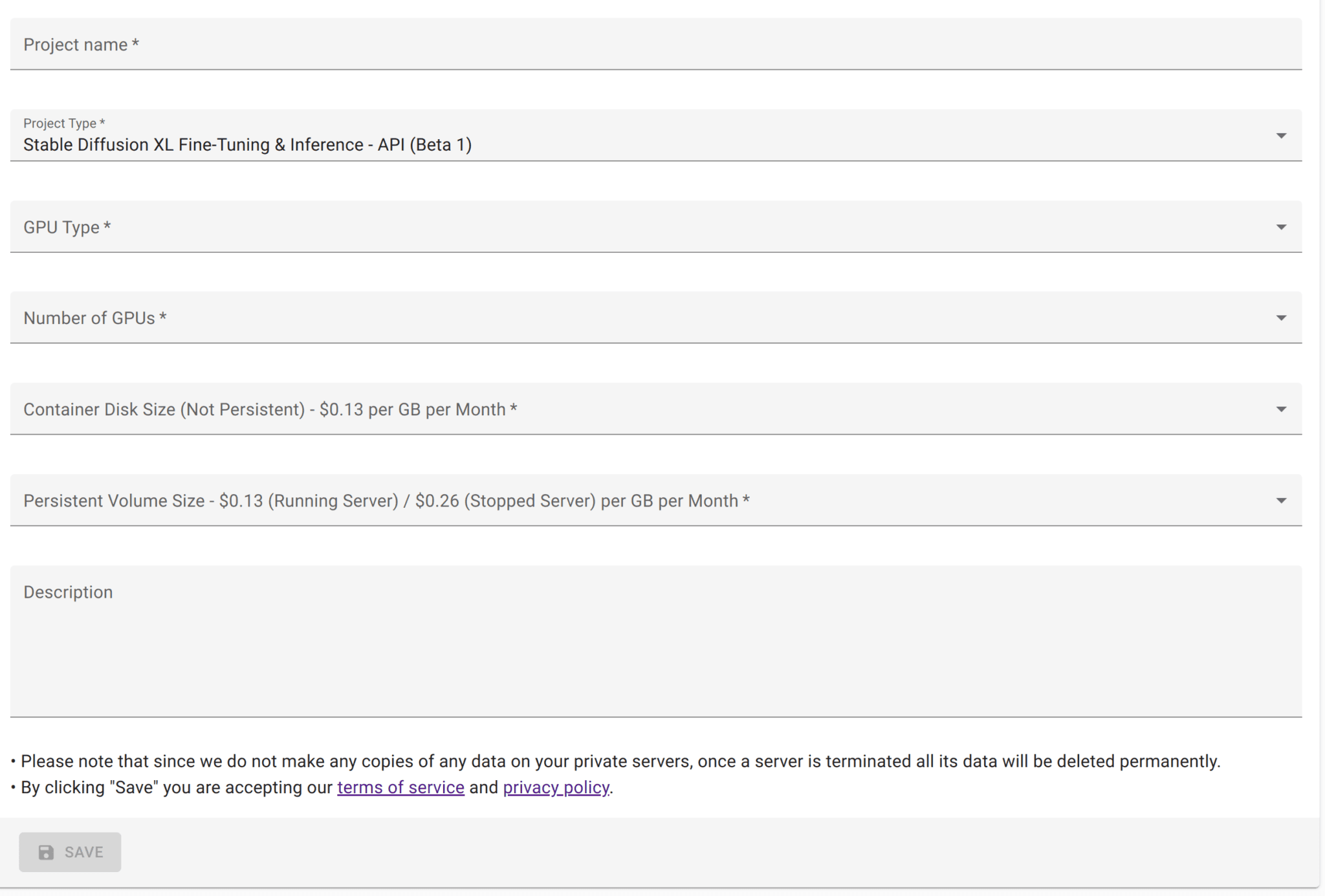
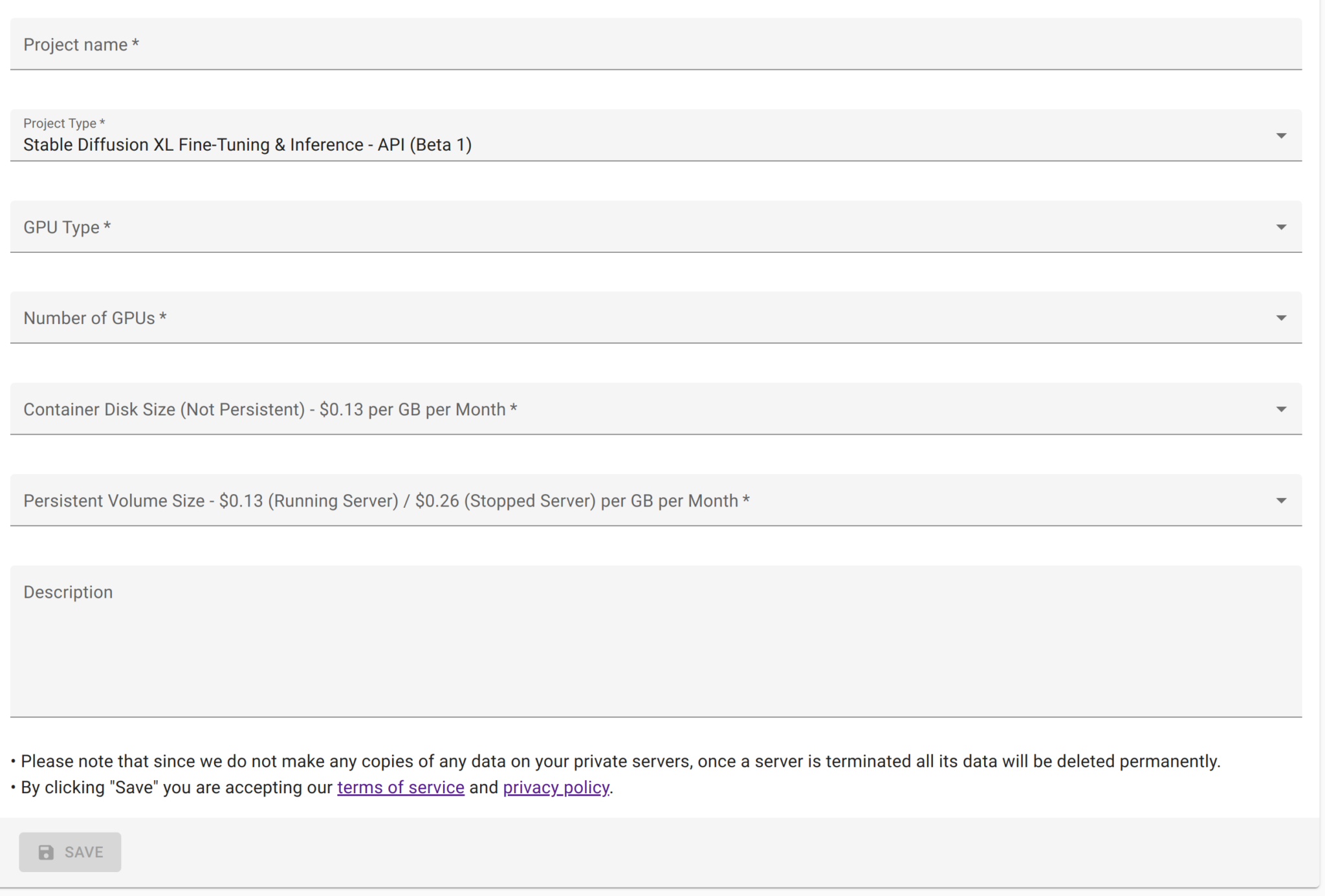
AptAI platform is designed to support a wide range of AI applications. As such, the first step toward creating your private server for your specific task is to create a "Project". To create a project click on CREATE on the top right on desktop platforms or the blue + sign on mobile devices and tablets.
After choosing your desired options you can save the project and will be returned to the main Admin page. Please bear in mind that some GPUs are on higher demand than others or generally have a limited or low availability. Starting a server with these GPUs might not be possible at all times.
Step 2: Start your server
Once your project is created you can start its associated server by clicking on CREATE & START under Server Status. It can take about 10 minutes for the server to get created, download the related models, and initialize.

Step 3: Access your server
Once the server is fully initialized, a random private URL will be created for your server and an OPEN button will appear under Server Access. By clicking on this button you will be redirected to the API endpoint documentation of your project at <YOUR-PRIVATE-SERVER-URL>/docs. Make note of your random private server URL as it will be used for all your API calls from within your code.

In order to access the documentation, however, you will need a Username and a Password which are randomly generated with the creation of the server. You can find them by clicking on SHOW CREDENTIALS under Server Status.

Step 4: Trying or calling the APIs
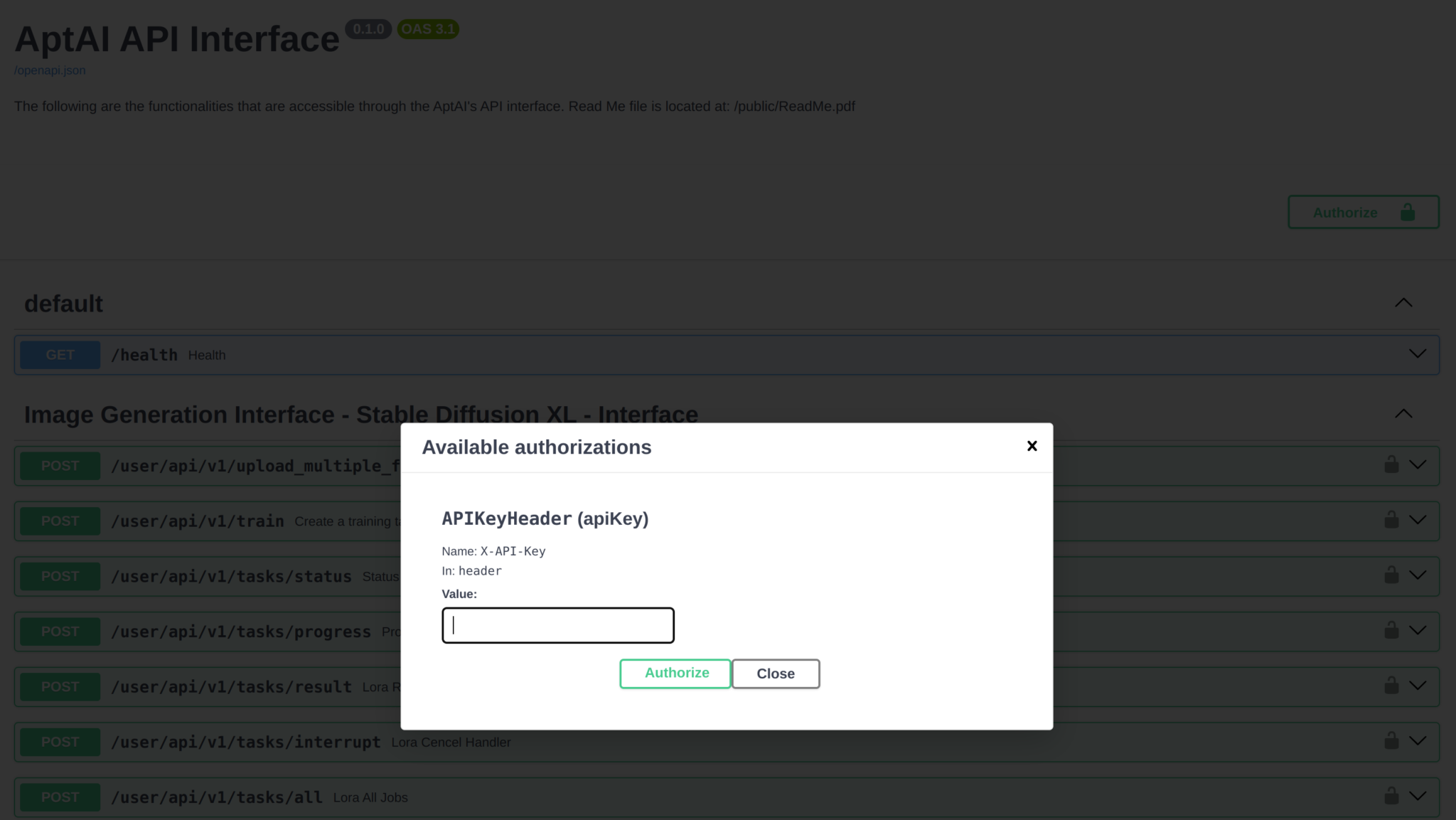
In order to "Try" the API endpoints on the documentation or to use these APIs from your application you will also need an API Key which is also provided along with other credentials. You can do so by clicking on Authorize or on the small lock icons. Congratulations! Your API endpoint is ready to use!
Step 5: Stopping the server
To avoid unnecessary costs, whenever your private server is not used you can easily stop it. Simply click on the STOP button under Server Status. Once you stop your private server, your server costs will be significantly reduced to only the cost of keeping your server's storage. If you prefer you can also TERMINATE your server to detach the storage as well, but your data will be permanently deleted and will not be restorable.
Questions or need help?
We would be more than happy to hear from you. Feel free to contact us.